You’ve unboxed your new GPS running watch, charged it overnight, strapped it on, and now you’re standing at the front door staring at a screen full of options you don’t understand. There are six different sport modes, something called VO2 Max, a training load metric, and it’s asking about your lactate threshold. All you want to do is go for a run and see how far you went. This guide gets you from box to first run without drowning in features you don’t need yet.
In This Article
- Before Your First Run: Essential Setup
- Connecting to Your Phone
- Setting Your Data Screens
- GPS Signal and Satellite Lock
- Your First Run: What to Expect
- Understanding Your First Run Data
- Key Settings to Change Early
- Heart Rate Monitoring Setup
- Auto Features Worth Enabling
- Syncing and Reviewing Your Runs
- Common First-Week Problems
- Frequently Asked Questions
Before Your First Run: Essential Setup
Charge Fully
Every GPS watch ships with a partial charge. Plug it in and charge to 100% before doing anything else. A full charge takes 1-2 hours for most watches. Starting with a full battery means you won’t run out mid-run on your first outing, and it establishes a baseline for battery calibration.
Update the Firmware
Connect the watch to Wi-Fi (if it has Wi-Fi) or pair it with the manufacturer’s app on your phone. There’s almost always a firmware update waiting — watches often sit in warehouses for months before reaching you. Updated firmware fixes bugs, improves GPS accuracy, and occasionally adds new features.
Enter Your Profile Data
The watch will ask for:
- Date of birth — used to estimate heart rate zones and VO2 Max
- Height and weight — used for calorie calculations and stride length estimates
- Gender — affects heart rate zone calculations
- Wrist preference — left or right, so the accelerometer calibrates correctly
Get these right. Inaccurate profile data means every subsequent metric the watch calculates will be off. Your calorie burn estimates, training load, and recovery recommendations all build on this foundation.
Connecting to Your Phone
Download the Right App
Each manufacturer has its own companion app:
- Garmin: Garmin Connect (the most feature-rich — borderline overwhelming at first)
- Coros: Coros app (clean, simple, well-designed)
- Polar: Polar Flow (solid but less intuitive than Coros)
- Apple Watch: built into iPhone — no separate app needed
- Suunto: Suunto app (recently overhauled, much improved)
Download the app, create an account, and enable Bluetooth on your phone.
Pairing
- Open the app and tap “Add Device” or “Pair New Watch”
- Put the watch in pairing mode — usually found in Settings > Phone > Pair
- The app should detect the watch within 30 seconds
- Confirm the pairing code on both devices
- Allow notifications if you want call/message alerts on your wrist
If pairing fails, try: turn Bluetooth off and on, restart the watch, restart the phone. If it still won’t pair, delete the watch from your phone’s Bluetooth settings and start fresh. Garmin watches are occasionally stubborn about initial pairing — patience helps more than repeated attempts.
Sync Preferences
After pairing, the app will sync your profile data to the watch. Set your preferred units (metric for the UK — kilometres, not miles, unless you prefer miles for running). Enable or disable notifications from specific apps — you probably don’t want Slack pinging your wrist mid-run, but incoming calls are useful.
Setting Your Data Screens
Start Simple
Your watch probably comes with 3-4 data fields per screen and multiple screens. For your first few runs, simplify ruthlessly. You need exactly three numbers:
- Elapsed time — how long you’ve been running
- Distance — how far you’ve gone
- Current pace — how fast you’re moving (in minutes per kilometre)
That’s it. Set your main running screen to show these three fields and nothing else. You can add heart rate, cadence, VO2 Max, and elevation later once you understand what they mean and why they matter.
How to Configure Data Fields
The process varies by brand but follows the same pattern:
- On the watch, go to the Run activity
- Hold the settings/menu button (usually the middle-left button on Garmin, bottom-right on Coros)
- Select “Data Screens” or “Data Fields”
- Choose the number of fields per screen (3 is the sweet spot — readable at a glance while running)
- Select each field and change it to your preferred metric
On Garmin, you can also configure this through the Garmin Connect app under Device Settings > Activities > Run > Data Screens. The app is easier for bulk changes.
A Second Screen Worth Adding
Once you’re comfortable with the basics, add a second screen with:
- Average pace — your overall pace for the run (smooths out the variation of current pace)
- Heart rate — current beats per minute
- Lap pace — pace for the current auto-lap segment (useful for tracking consistency)
GPS Signal and Satellite Lock
Getting a Fix
Before starting any run, wait for the watch to lock onto GPS satellites. This typically takes 10-60 seconds, depending on your location and how recently the watch last had a fix.
- Stand still outdoors — don’t start walking while it searches. Standing still helps the receiver lock faster
- Open sky — away from buildings, trees, and overhead cover. The watch needs line-of-sight to satellites
- Wait for the green light — most watches show a GPS icon that changes from searching (flashing) to locked (solid) or changes colour
Why Your First Fix Takes Longer
The very first GPS lock on a new watch can take 2-3 minutes because it needs to download the satellite almanac (a map of where all the satellites are). After this initial download, subsequent locks are much faster — typically under 30 seconds.
Some watches (Garmin, Coros) can download satellite data via Wi-Fi or Bluetooth, which speeds up the first fix. If your watch offers “satellite pre-loading” or “EPO download,” enable it.
Multi-Band GPS
If your watch supports multi-band or dual-frequency GPS (most watches above £200 do), enable it for your first few runs. It uses more battery but provides noticeably better accuracy, especially in urban environments with tall buildings that reflect GPS signals. After a few runs where you’ve confirmed the GPS tracks look accurate, you can switch to standard GPS to save battery.
Your First Run: What to Expect
Starting the Activity
- Select the “Run” or “Outdoor Run” activity
- Wait for GPS lock (solid icon)
- Press Start
- Run
That really is it. The watch handles everything automatically — it records your route, pace, distance, and time. When you’re done, press Stop and then Save.
What You’ll Notice
- Pace fluctuates wildly — current pace on a GPS watch bounces around, especially at slower speeds. This is normal. GPS calculates speed from position changes, and small GPS errors create pace jumps. After running with a GPS watch for about a month, I learned to glance at average pace instead of current pace to avoid the frustration of watching the numbers jump between 5:30 and 6:30 every few seconds
- The first 200 metres might be inaccurate — some watches take a moment to settle their GPS track after you start moving. Don’t worry if the first split looks off
- Heart rate may spike at the start — optical wrist sensors can misread during the first few minutes, especially if the watch isn’t positioned correctly. It usually settles within 2-3 minutes
During the Run
- Don’t stare at the watch — check it occasionally, not constantly. Looking at your wrist every 10 seconds kills the joy of running and you’ll trip over something
- Use auto-lap — most watches are set to buzz at each kilometre. This gives you natural checkpoints without needing to look at the screen
- If something seems wrong — pace showing 2:00/km or distance stuck at zero — the GPS may have lost lock. Stop, wait for it to reacquire, and continue. This happens occasionally in dense urban areas or heavy tree cover
Understanding Your First Run Data
After your first run, the watch and app will show you a wall of data. Here’s what matters and what to ignore for now.
Worth Looking At
- Total distance and time — the basics. Did you run 5km? Great. How long did it take? That’s your benchmark
- Average pace — more useful than splits for your first run. Gives you a single number to compare against future runs
- Route map — check that the GPS track matches where you actually ran. If it’s wildly inaccurate (cutting through buildings, showing you running through rivers), there may be a GPS setting to adjust
- Heart rate graph — if you wore the watch snugly, the heart rate trace shows how your body responded to the effort. A steady line means consistent effort. Sharp spikes at the start are normal
Ignore for Now
- VO2 Max estimate — the watch needs at least 2-3 runs to produce a meaningful estimate. The first number is a guess
- Training load and recovery time — these require weeks of data to calibrate. The “36-hour recovery” recommendation after an easy 5K is the watch being cautious with limited data
- Running dynamics — cadence, ground contact time, vertical oscillation. Interesting later, noise right now
- Performance condition — Garmin’s real-time fitness estimate. Unreliable until it has several weeks of baseline data
Key Settings to Change Early
Auto Pause
Enables the watch to pause recording when you stop moving (at traffic lights, pedestrian crossings, tying your shoe laces). Turn this on if you run in urban areas. Leave it off if you run on trails or paths without stops — auto pause can sometimes trigger during very slow uphill sections. For a related angle, see our GPS Watch Accuracy: How Reliable Is the Distance Tracking? guide.
Auto Lap
Set to 1 kilometre. The watch buzzes and shows your split time at each km marker. This is the most useful automatic feature for recreational runners — it gives you pacing feedback without needing to check the screen manually.
Alerts
Set a heart rate alert if you’re training by heart rate zones. A gentle buzz when you exceed 80% of max HR prevents accidental over-effort on easy runs. Skip this until you understand your zones — our GPS watch features guide explains zones in detail.
Backlight
Set the backlight to “Gesture” mode — it turns on when you raise your wrist to look at it and turns off when you lower it. This saves battery compared to always-on but means you can always read the screen.
Do Not Disturb
Enable DND mode during activities. Your watch doesn’t need to buzz with WhatsApp messages and email notifications while you’re running. Most watches have a setting to automatically enable DND during tracked activities.
Heart Rate Monitoring Setup
Optical (Wrist) Heart Rate
All modern GPS watches have optical heart rate sensors on the back. For accurate readings:
- Wear the watch snugly — it shouldn’t slide around on your wrist. One finger should fit underneath, but no more
- Position 1-2cm above the wrist bone — not on the bone itself. Bones move and disrupt the sensor
- Tighten for activities — many runners wear the watch looser day-to-day and tighten it slightly before a run
- Dark skin tones may affect accuracy on some older sensors — newer watches (Garmin 265+, Coros Pace 3+) have improved LED arrays that work better across skin tones
Chest Strap (Optional)
For maximum accuracy, pair a Bluetooth chest strap (about £30-50 for a Garmin HRM-Dual or Polar H10). After comparing wrist HR to chest strap readings across dozens of runs, I found the wrist sensor was within 2-3 BPM for steady runs but could be 10-15 BPM off during intervals with rapid HR changes. For most recreational running, wrist HR is accurate enough.
Setting Heart Rate Zones
Your watch calculates zones based on estimated max HR (typically 220 minus your age). This formula is famously inaccurate for individuals — it’s a population average. After a few weeks of running, if your zones feel wrong (easy runs in zone 4, or you can’t reach zone 5), manually adjust your max HR based on the highest reading you’ve recorded during a hard effort. Our Garmin vs Coros vs Polar: Running Watch Brands Compared guide is useful alongside this.
Auto Features Worth Enabling
Auto Climb / Auto Descent
Detects when you’re running uphill or downhill and switches to a different data screen. Useful for trail runners who want to see elevation gain on climbs and descent rate going down.
Incident Detection
Most Garmin, Apple, and Coros watches can detect a fall or sudden stop and alert emergency contacts via your phone. Worth enabling for solo runners — it’s a safety net you hope you never need.
Live Tracking
Share your real-time location with family or friends during a run. The NHS recommends staying active regardless of the season, and live tracking helps runners feel safer doing exactly that. Set it up through the companion app and choose which contacts receive the link. Lauren doesn’t need to know your exact splits, but knowing your location during a dark February run is reassuring for everyone.
Weather Alerts
If your watch supports it, enable weather alerts. A thunderstorm warning mid-run gives you time to change your route or head home early.
Syncing and Reviewing Your Runs
Automatic Sync
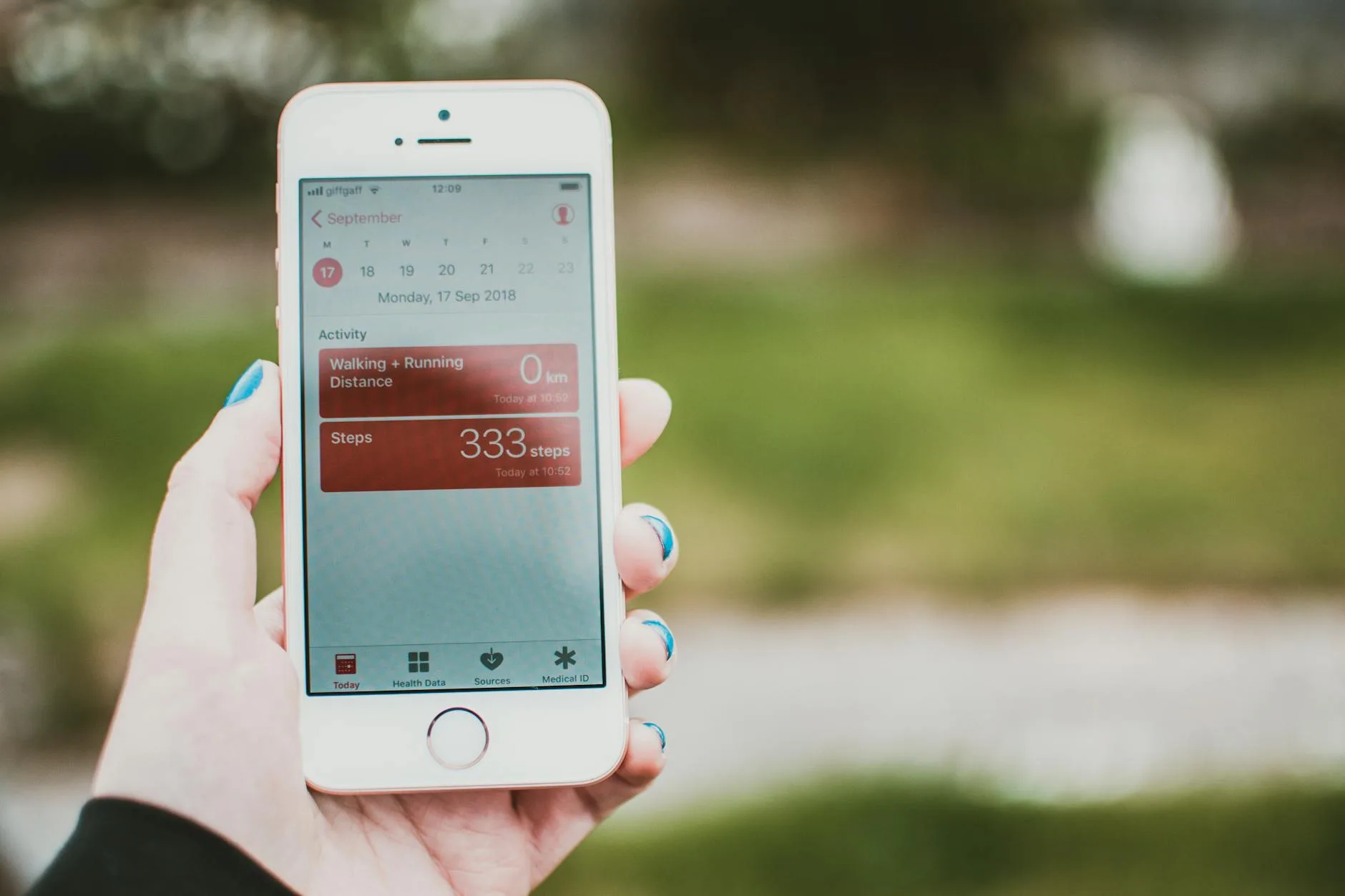
After each run, the watch should sync automatically to your phone when Bluetooth is connected. If it doesn’t, open the companion app and pull down to refresh. Garmin Connect is occasionally slow to sync — give it a minute.
What to Review
After your first few runs, check:
- GPS track accuracy — zoom in on the map. Does the track follow roads and paths accurately, or does it cut corners and wander through buildings? If accuracy is poor, try multi-band GPS or adjusting the recording interval
- Pace consistency — are your splits roughly even, or do you speed up and slow down wildly? Even pacing is more efficient and feels better
- Heart rate trends — is your HR climbing throughout the run (cardiac drift), or staying stable? A gradual climb is normal on longer runs
Connecting to Third-Party Apps
Most runners eventually connect their watch to Strava, which provides a social element and more detailed analysis. Connect through the companion app (Settings > Connected Apps > Strava). Your runs will sync automatically after each activity.

Common First-Week Problems
GPS Track Looks Wrong
- Tracks cutting through buildings — try multi-band GPS if available, or run in more open areas for the first few runs while the watch builds its satellite almanac
- Distance seems short — GPS underestimates distance slightly on winding paths and tracks with lots of turns. A 5km parkrun measured by GPS typically reads 4.85-4.95km. This is normal GPS behaviour, not a fault
- Track starts 200m from where you actually started — the watch hadn’t fully locked GPS before you pressed start. Wait for a solid fix next time
Heart Rate Seems Wrong
- Locked at 100-120 BPM and doesn’t change — the sensor is reading your cadence (arm swing) instead of your heart rate. Reposition the watch higher on your wrist and tighten the strap slightly
- Random spikes to 200+ BPM — usually caused by a loose strap or dry skin. Wet the sensor area slightly before your run (sweat eventually does this naturally after 5-10 minutes)
- Consistently too high or too low — compare to a manual pulse check. If they don’t match, consider a chest strap for important sessions
Battery Draining Too Fast
- Multi-band GPS uses considerably more battery than standard GPS. Switch to standard GPS for easy runs where accuracy isn’t critical
- Always-on display — if your watch has this option and it’s enabled, it doubles the battery drain. Use gesture-activated backlight instead
- Too many notifications — constant Bluetooth communication for message alerts drains battery. Disable notifications during activities
Watch Won’t Find GPS
- Indoors — GPS doesn’t work inside buildings. Go outside
- Urban canyons — tall buildings on both sides block satellite signals. Walk to a more open area before starting
- Software glitch — restart the watch. If it still can’t find GPS after 3-4 minutes outdoors with open sky, check for firmware updates
Frequently Asked Questions
How accurate is GPS distance on a running watch? Modern GPS watches are typically accurate to within 1-3% of actual distance on open roads. On winding trails, under tree cover, or in urban areas with tall buildings, accuracy drops to 3-5%. A measured 5km parkrun usually reads 4.85-4.95km on GPS — this is normal. Multi-band GPS improves accuracy in challenging environments but uses more battery.
Should I run with my phone as well as my GPS watch? For safety, yes — especially for solo runs in remote areas or after dark. Your watch can track the run, but your phone provides emergency calling, live tracking for family, and music if you want it. Many runners carry their phone in an armband or running belt and forget it’s there.
How long should I wait for GPS lock before starting? Wait until the GPS icon shows a solid lock — typically 10-60 seconds. Don’t start moving while the watch is still searching, as this slows the lock process. If it takes more than 2-3 minutes, move to a more open area away from buildings and tree cover. After the first few runs, locks should take under 30 seconds.
Do I need a chest strap for heart rate? Not initially. Wrist-based heart rate is accurate enough for most recreational running — steady-state runs, easy efforts, and general fitness tracking. If you plan to do structured interval training or heart-rate-zone workouts, a chest strap provides more responsive and accurate readings during rapid HR changes. Start with the wrist sensor and upgrade later if needed.
Why does my watch say I need 48 hours recovery after an easy run? New watches with limited data tend to overestimate recovery time. The algorithms need 2-4 weeks of running data to calibrate properly. Follow how your body actually feels rather than the recovery estimate for the first month. After enough data, the recovery recommendations become properly useful.